Binance Face Verification Stuck on Loading (or Showing Error 133197)
Restart on a different device. On the Binance website, pick the QR code option to carry on by phone; if it’s the app that stays on loading, begin again on the website instead.
Jump to a section
- Leave the stuck screen and start again from the top. On the website, hover over the profile icon, click [Account], go to [Identification] and click [Get Verified]. In the app, tap [Verify Now] on the home screen. Be ready to photograph your document again, in case a stalled attempt doesn’t pick up where it stopped.
- On the website, select Residence, Document Issuing Country/Region and Document Type. Binance’s identity verification page then gives two ways on: “Upload document from current device or verify with phone by scanning the QR code to connect.” Take the phone option and scan the code with your phone.
- Finish the document photos and the liveness check in one sitting. The website instructions say “Do not refresh your browser during the process”, and the app version says “Do not refresh or quit the App during the process.”
- Was it the app that hung? Then go the other way and start on the website on a computer, where you can either upload from the computer or hand over to a phone by QR code. Binance notes that the manual upload option depends on the country.
After a QR hand-off, keep the phone ready for the liveness check too. The identity page doesn’t name the device for it, but it comes straight after the document photos.
None of the Binance help pages we read describes a loading screen that never finishes, a check that couldn’t start, or the number 133197, so the screen tells you only that the check didn’t finish. The things you can change are the device, the camera and its permission.
If the scan did run to the end and then said it failed, that’s a different problem with different fixes, covered in what to change before you retry a failed face scan. If it goes through on your next try, the next step is the review itself, and how long Binance verification takes has the published times. For a document or address step that failed instead, see the fixes for each Binance verification step.
What your screen shows when facial verification stalls
Start from what your screen shows. The advice on when to stop is ours, since Binance’s pages give no number of restarts.
| What you see | What Binance’s pages say | Next | Stop when |
|---|---|---|---|
| No camera permission request, or a black frame | “Please enable camera access on your device.” | Check the permission on your device, then restart | It won’t open on a second device either |
| A spinner or loading screen that doesn’t move | Nothing about this screen. The nearest rule: don’t refresh, and don’t quit the app, during the process | One full restart in one go, then another device | It stalls on two devices |
| A message saying it couldn’t start | Not explained on the Binance pages we read | As for the loading screen | As for the loading screen |
| A number such as 133197 | Not explained on the Binance pages we read | Write it down exactly, then as for the loading screen | As for the loading screen; quote the number when you appeal |
| A secure link or QR code on the extra check for fiat services | Allow camera access; finish on the phone | See the fiat check | It stalls on the phone too |
Any meaning for 133197 you read elsewhere needs a Binance source behind it, or it’s someone’s guess. Treat it like the loading screen, because the steps you can take are the same. Take a screenshot with the time showing if you can, and copy the number digit for digit. If you can’t tell which row is yours, the face verification self-check asks where the check stopped and gives the next step for that point.
Checked in October 2026 against Binance’s identity verification, face verification, withdrawal reactivation and fiat check pages, its Migrant Residents set-up guide and Privacy Portal, plus Google’s and Apple’s camera help.
Camera not working for Binance verification? Check the permission
The identity page gives the camera one short line, “Please enable camera access on your device.” Binance’s face verification page adds “Make sure your device’s camera is enabled and that your face is positioned within the frame provided.”
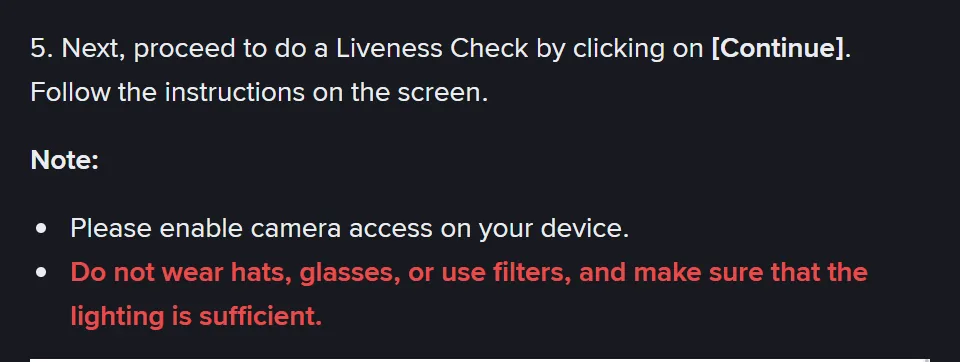
Neither page explains how to do that on a particular phone or browser, so the device steps come from Google’s and Apple’s help pages.
- Chrome on a computer. Google’s Chrome Help page “Use your camera and microphone in Chrome” gives the path: More at the top right, then Settings, Privacy and security, Site settings, and Camera under “Permissions”. Look for the Binance website in the list headed “Not allowed to use your camera or microphone”; if it’s there, select it and change the permission to “Allow”. The same page’s troubleshooting goes on to your computer’s own camera settings (is the right camera selected?), then restarting Chrome, then restarting the computer.
- The Binance app on Android. Android Help’s page “Change app permissions on your Android phone” has you open the Settings app, tap Apps, tap the app (or See all apps first), tap Permissions, then the camera permission. For the camera it lists “Allow only while using the app”, “Ask every time” and “Don’t allow”; pick one of the first two.
- The Binance app on an iPhone. Apple’s iPhone User Guide page “Control access to hardware features on iPhone” says to go to Settings > Privacy & Security, tap Camera, and turn access on or off for any app in the list of apps that have asked for it. Turn it on for Binance.
- Anything else holding the camera. Close video calls and other apps that use the camera, update the Binance app or your browser, or try a different browser on the same computer, which is our advice rather than a step from the help pages.
If your computer’s webcam is old, we’d hand the check to the phone rather than keep restarting on the webcam, because Binance’s face verification page lists “Low camera quality.” among the reasons a face check might fail. That reason is given for refused scans rather than stalled ones.
Camera stuck on the additional verification for Binance fiat services
If the camera stopped on the additional verification Binance asks for before its fiat service, the screens differ from the identity check’s. Binance’s page “How to Complete Additional Verification Before Using Binance’s Fiat Service?” (updated 19 December 2025) shows two sets, one for each verification provider it names:
- Onfido screens. “Click [Get secure link] and you will see a QR code.” Then: “Scan it with your mobile.” Once the phone is connected, the help page asks you to keep the screen on the computer open throughout the process. The step for a phone camera that hasn’t been allowed reads “If you haven’t enabled camera access, tap [Enable camera] to continue.” After that comes the selfie: “Position your face within the oval.”
- Sumsub screens. “Scan the QR code with your phone to begin.” Then: “Allow camera access and position your ID document inside the box.” The selfie step says “Look straight into the camera and position your face within the frame.”
Both send the camera work to your phone by QR code and ask for camera access there, so if this check stalls, run the same camera checks on the phone. When to stop is the same too: once it stalls on the phone as well.
On the Onfido screens, leave the computer page open while you work on the phone.
Stopped on two devices? Ask for a manual review
Once the check has stalled on two devices, we’d stop restarting, because the device was the thing you could change and you’ve changed it.
Binance’s withdrawal reactivation page says “Facial verification may fail due to technical difficulties or device issues.” It goes on, in a line we’d apply to a check that won’t load as well, “If you encountered difficulties when completing the facial verification, you can submit an appeal by following the steps below.”
Binance’s pages give two ways in. One is the [Facial Verification Appeal] page, which opens from an [Appeal] button, wherever your account shows one. The other starts in support. Binance’s privacy portal gives the path through the headphone or chat icon on your profile, “View more” in the Self-Service section, then “Failed Facial Verification Appeal” in the KYC section, and says the request goes to a KYC customer support agent for a manual review. The full steps, including the security questions and the statement video that support may ask for, are in getting a person to review the face check.
The appeal page has an [Additional Information] section for anything that helps Binance process the appeal. For a check that never loaded, put in it the device and its operating system, the app version or the browser, where the check stopped, any number exactly as it appeared, and what you changed between attempts.
Daily limits, login scans and offers to clear error 133197
Does an attempt that never loaded count towards a daily limit?
The Binance help pages we read don’t say. The one limit among them is on Binance’s page for migrant residents, which allows up to 10 attempts at the Identity Verification process a day and asks you to wait 24 hours once your application has been denied 10 times within 24 hours. It counts attempts and denials without saying whether a check that never started counts as either, and the main identity verification page gives no number at all. A limit like this can change, so look at the app or help centre for how it reads now.
Can I skip the face check, or verify without a camera?
You can’t skip it. Binance’s face verification page says “facial verification is mandatory and cannot be removed or bypassed.” Nor do the Binance help pages we read describe a way to verify without a camera. If no camera you can use will run the check, try the facial verification appeal, since Binance’s withdrawal page says the appeal exists because the check can fail through technical difficulties or device issues.
I’m already verified, and the face scan at login or withdrawal won’t load. Same fix?
Mostly. Binance’s face verification page says that check may be asked for when you access your account or use features such as trading and withdrawals. Its first step is to have biometrics set up in your device settings before you start: [Face ID & Passcode] on iOS, [Face unlock] on Android. After that, the camera permission checks apply as they are. For a check that fails there, the same page says to contact Binance customer support.
Someone online says they can clear error 133197 for me. Should I let them?
No. Binance’s face verification page says that trying to bypass the check “by sharing an account with family members or individuals other than yourself, etc. is considered a violation of our terms and conditions”, and letting a stranger into your account or onto your camera would put your ID in their hands. No Binance help page we found mentions an outside service for face checks, and the appeal you open from inside your own account is where a person at Binance looks at the check. If someone says they’re from Binance, look them up on Binance Verify before you reply.