Liveness Check Failed on a Crypto Exchange? Four Places a Face Scan Stops
Start from what’s on your screen. A camera that never opened needs a permission or another device; a scan that ended in a refusal needs better light, a clear face or a person to review it.
Jump to a section
- The camera won’t open: no permission request, a black frame, or the face step itself never appears.
- The scan starts but won’t finish: it keeps loading, a head-turn prompt doesn’t register, or a network or attempts message comes up.
- The scan finishes and you’re refused: the result says it failed, on screen or by email.
- You passed once, and the scan is back: at login, before a withdrawal, or while recovering or changing your security settings.
The camera won’t open
Two exchanges’ verification guides carry the same line:
On screenPlease enable camera access on your device.
That’s the first fix. Some apps need more than the camera: OKX also asks for access to the photo album and storage, set in your phone’s app permission settings. Then work through these in order:
- Allow the camera for the exchange’s app in your phone settings, or for the exchange’s website in your browser. The paths for Chrome, Android and iPhone are set out in the camera permission steps for a stuck face check; the phone and browser settings are the same whichever exchange’s app or site you use.
- Close video calls and other apps that might be holding the camera, then wipe the lens. The lens is on two exchanges’ checklists; closing other apps is our suggestion.
- Move the scan to a phone. Three of the four exchanges here describe a QR code on the website that hands the check to your phone. Depending on the exchange, the phone then takes over only the face scan, or everything from the document photos on.
- If you can’t tap video verification in the app, one exchange suggests completing identity verification on the web first, then going back to the app for facial recognition.
Sometimes the camera is fine and the face step simply never comes. Bybit’s how-to page says that if you can’t get to the facial recognition page after several attempts, the document you submitted may not meet the requirements, or there have been too many submissions in a short time. Its advice is to try again after 30 minutes, then submit a case to support if it still won’t open.
So check the ID photos you just took as well as the camera.
When to stop: the camera won’t open on a second device you own, with the permission allowed on both. We’d leave it there, because by then you’ve changed what you can. Contact support with a screenshot of the screen’s exact words and your device details.
The scan starts but won’t finish
A scan that hangs hasn’t given you a result yet, so there’s no refusal to fix. What you can still change is the connection, the app and the device.
- Stay in it. Verification pages ask you not to refresh the browser during the check, and not to refresh or quit the app. Finish it in one sitting.
- Use the official app, up to date, or the official website, never a copy installed from an unknown link or developer.
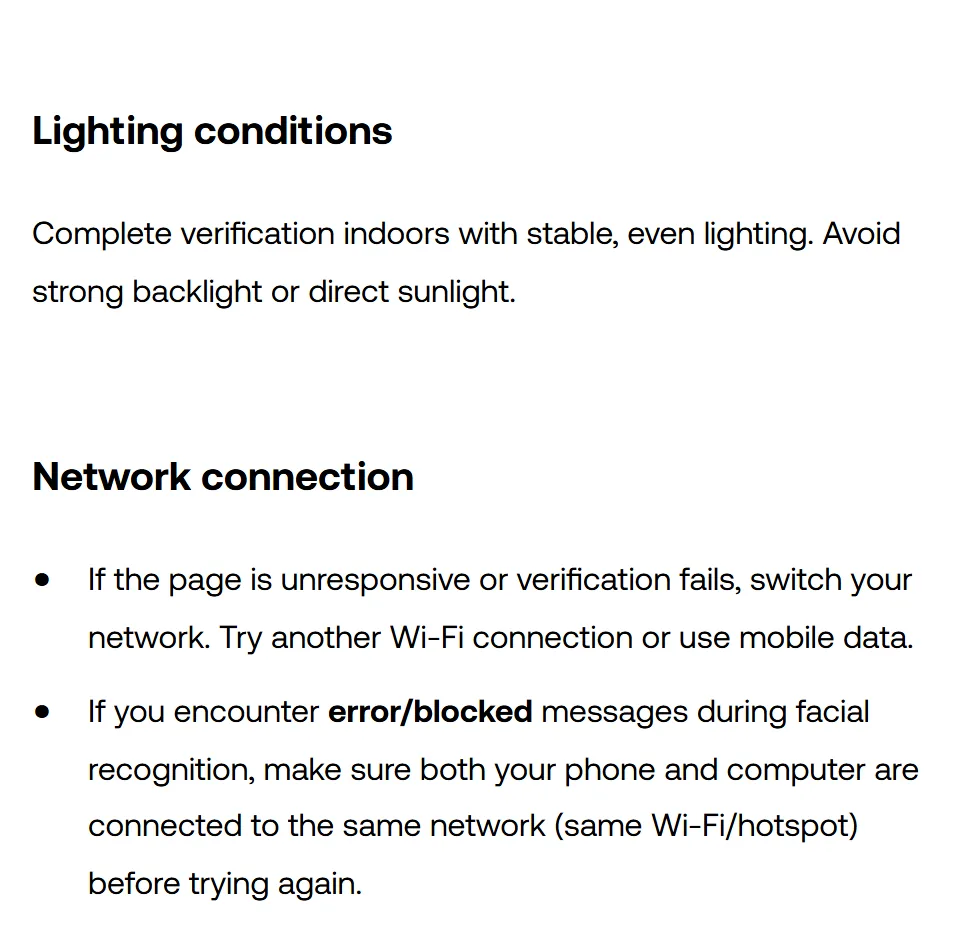
- Keep one network while the check runs, but switch between attempts. Use a stable Wi-Fi or mobile-data connection and don’t change it mid-check; if the page stops responding, try another Wi-Fi network or mobile data for the next attempt.
- Follow the movement prompts slowly. The pages word them in much the same way, asking you to centre your face and keep “slowly turning your head around the circle within the frame”, to follow prompts such as “turning your head or blinking”, to keep the device steady at eye level, and to avoid shaking.
- Restart the phone, then try another device you control. One exchange puts errors during facial recognition down to device compatibility, and suggests a restart before trying again.
OKX’s facial recognition page names four situations with their own fixes:
| What you see | What that page says to do |
|---|---|
| An error or blocked message during facial recognition | Put your phone and computer on the same Wi-Fi or hotspot, then try again |
| A security risk warning | Restore the device to its original environment; if it persists, use another device |
| A blank page, or “Failed to connect to Google services” | Uninstall the app, reinstall it from the exchange’s website, log in and retry |
| “You’ve reached the maximum number of attempts” | Wait 30 minutes, keep your face fully visible and the camera unobstructed |
None of the four says whether a scan that never finished counts towards an attempt limit, so don’t assume a hang is free.
When to stop: we’d stop at two devices and two networks, with the scan still hanging at the same point. Send support a screenshot of the screen’s exact words, your device model, operating system version, app version, the time of the attempt and the exact step that failed; one help page says support needs these to tell whether the device, the network or the app is at fault.
The scan finishes and you’re refused
Read the reason first. Depending on the exchange it comes by email, on the verification page, or both, and the table shows where each one puts it. Then compare your scan with the conditions each exchange lists:
| Binance | Bybit | OKX | Bitget | |
|---|---|---|---|---|
| Light | Enough light; no strong backlight or shadows | Not in “a dark environment” | Stable, even light indoors; no strong backlight or direct sunlight | Good light, no backlighting that casts shadows |
| Your face | Whole face visible, centred, eyes open; no hats, glasses or filters | Facial features clear and visible | Face fully visible | No hats, glasses or other accessories over your face |
| Movement | Follow instructions such as turning your head slowly or blinking | Turn your head slowly around the circle | Not covered on the help pages we read | Follow prompts such as turning your head or blinking |
| Who is in the frame | Must be the account owner | Only one person in the frame | You do the facial check yourself | Not covered on the help pages we read |
| Attempts | No number on its main identity page | More than five refusals in 24 hours: wait another 24 hours | After “You’ve reached the maximum number of attempts”: wait 30 minutes | Up to 5 attempts in 24 hours, then wait 24 hours |
| Where the reason shows | Not covered on the help pages we read | In the result email, and behind the [?] icon on the Identity Verification page | On the page or in your registered email | In an email with the rejection |
| A person to review it | A facial verification appeal, checked by hand by dedicated auditors; otherwise customer support | LiveChat support or a support case | Customer support, with a screenshot and your device details | Not covered on the help pages we read |
| Face scans after sign-up | To get into the account, and for trading, withdrawals, redeeming rewards and raising deposit limits; it can’t be removed or bypassed | Not covered on the help pages we read | At login, for security setting changes and for identity verification | Live verification or live video verification when you recover two or more lost security methods at once |
The attempt limits in the table were checked in October 2026, so look at the current wording in the app or help centre before you count on them.
Not every refusal can be fixed by scanning again. Bybit’s failure reasons page separates “Invalid selfie” (a poor-quality scan, or one that couldn’t be processed) from “Face unmatched / Document is inconsistent with the face recognition”. That split decides what you do next.
- The scan wasn’t good enough. Light, glasses, a shaky phone or an off-centre face. Fix every point in the table, not only the one you suspect, and scan once more in one go.
- The face didn’t match the ID. This one is different. The check compares a live image of your face with the photo on the ID you submitted, and a live face that looks very different from that photo is one of the five reasons a face verification help page gives for failure. If the gap comes from an old ID photo, more light won’t change that photo.
For a mismatch, or a second refusal with every condition met, we’d stop scanning and ask for a person to look at it: depending on the exchange, a facial verification appeal, live chat or a support case, or customer support. One appeal page explains why it exists: facial verification “may fail due to technical difficulties or device issues”, so dedicated auditors check the account by hand. The identity-proofing guideline published by the US National Institute of Standards and Technology (NIST) says credential service providers “SHOULD offer trusted referee services for failures of automated verification processes”, naming biometric comparisons as the example.
The steps for a facial verification appeal, and what to put in it, are in what to change before you retry a failed face scan, and the face verification self-check starts from the point where yours stopped.
You passed once, and the scan is back
A face scan isn’t only for opening an account. Exchanges ask for it again at login, before withdrawals and other features, when you change security settings and when you recover lost security methods, and which of these applies differs by exchange.
The fixes are the same as for a first scan, depending on where it stops. Two things are different this time:
- The face must match the identity on the account you’re signed into. Under identity mismatch, one facial recognition help page simply says to make sure the logged-in account matches your verified identity.
- The stakes are higher. On Binance, failing the face check can suspend withdrawals. The example its page gives is a scan where “there were other people captured during the face verification process.” Getting withdrawals back then takes a new video with everyone who appeared, sent to support. The steps are in someone else appeared in your face video.
If the scan at login fails and you can’t get in, contact customer support. For a new device that can’t get into the account, one exchange puts a Contact customer support option on the login page once the prompt appears. If you’re being asked for documents again rather than your face, that’s a different check, covered in why exchanges re-check verified accounts.
What is a liveness check, and what does it look for?
There are two tests in one scan. The first is whether a live person is in front of the camera, and the second is whether that live face matches the photo on your ID.
NIST’s identity-proofing guideline, SP 800-63A-4, requires identity-proofing services that collect and compare biometrics remotely to use presentation attack detection “to confirm the genuine presence of a live human being and to mitigate spoofing and impersonation attempts.” Its glossary describes liveness detection, one kind of presentation attack detection, as measuring and analysing “anatomical characteristics or voluntary or involuntary reactions” to tell whether a sample is being captured from “a living subject that is present at the point of capture.” That would explain why you’re asked to turn your head or blink.
Holding up a photo or a video, or putting someone else in front of the camera, is the kind of spoofing and impersonation that presentation attack detection is there to catch. NIST asks for “reasonable assurance that the biometric characteristic is collected from the applicant and not another subject.” The exchanges are as plain: the account owner, one person, you yourself. One face verification page goes further, listing an attempt to use someone else’s face or ID as a reason the check fails, and calling an account shared with family members to get round it a breach of its terms.
When a check keeps failing, ask for a human review and don’t look for a way round it. If you’re helping a parent or partner, they do the scan themselves and you stay out of the frame. If someone offers to get your face check passed for a fee, or contacts you first asking for a video of you holding your ID, run through five checks for fake KYC messages and “exchange support” calls before you reply.
The help pages and identity-proofing guideline behind each fix, read in October 2026
- OKX
- Help pages on failed facial recognition, and on identity verification eligibility, review times and stuck checks — light, switching network, phone and computer on the same network, app permissions and version, device compatibility, security risk warnings, the 30-minute wait, face checks at login and for security changes (published 11 October 2024, updated 25 August 2026); doing the facial check yourself, what to try in order when it’s stuck, the details support needs, the reason shown on the page or by email (published and updated 28 August 2026)
- Bybit
- Help pages on why identity verification fails and how to complete it — face unmatched and invalid selfie, one person in the frame, turning your head around the circle, where the result shows, more than five refusals in 24 hours (last updated 25 November 2025); the face scan by laptop camera or by QR code, the 30-minute wait when the face step won’t open (last updated 6 July 2026)
- Binance
- Help pages on face verification, identity verification for a personal account, and getting withdrawals back after a failed face check — what the scan compares, five reasons it might fail, the pre-verification checklist, face checks at login and for withdrawals (published 22 October 2025, no update date shown); camera access, no hats, glasses or filters, not refreshing or quitting, the QR code option, using only your own ID (updated 5 June 2026); the appeal for a manual check (published 8 January 2020) and other people in the video (no date shown)
- Bitget
- Help pages on identity verification on the website, common verification questions and account recovery — camera access, the QR hand-off to a phone, background, light, head-turn and blink prompts, the emailed reason (published 29 April 2024); up to five attempts in 24 hours (published 26 April 2024); live verification when two or more security methods are lost (published 3 April 2025); no later dates shown
- NIST Special Publication 800-63A (SP 800-63A-4) — presentation attack detection, the definition of liveness detection, biometrics collected from the applicant and not another subject, trusted referees for failed automated checks; page stamped 26 August 2025