Lost or New Phone: Moving Google Authenticator and Exchange 2FA, or Resetting It
If your authenticator codes were synced to a Google Account, signing in on the new phone brings them back. If not, copy them from the old phone, or reset 2FA at each exchange.
Jump to a section
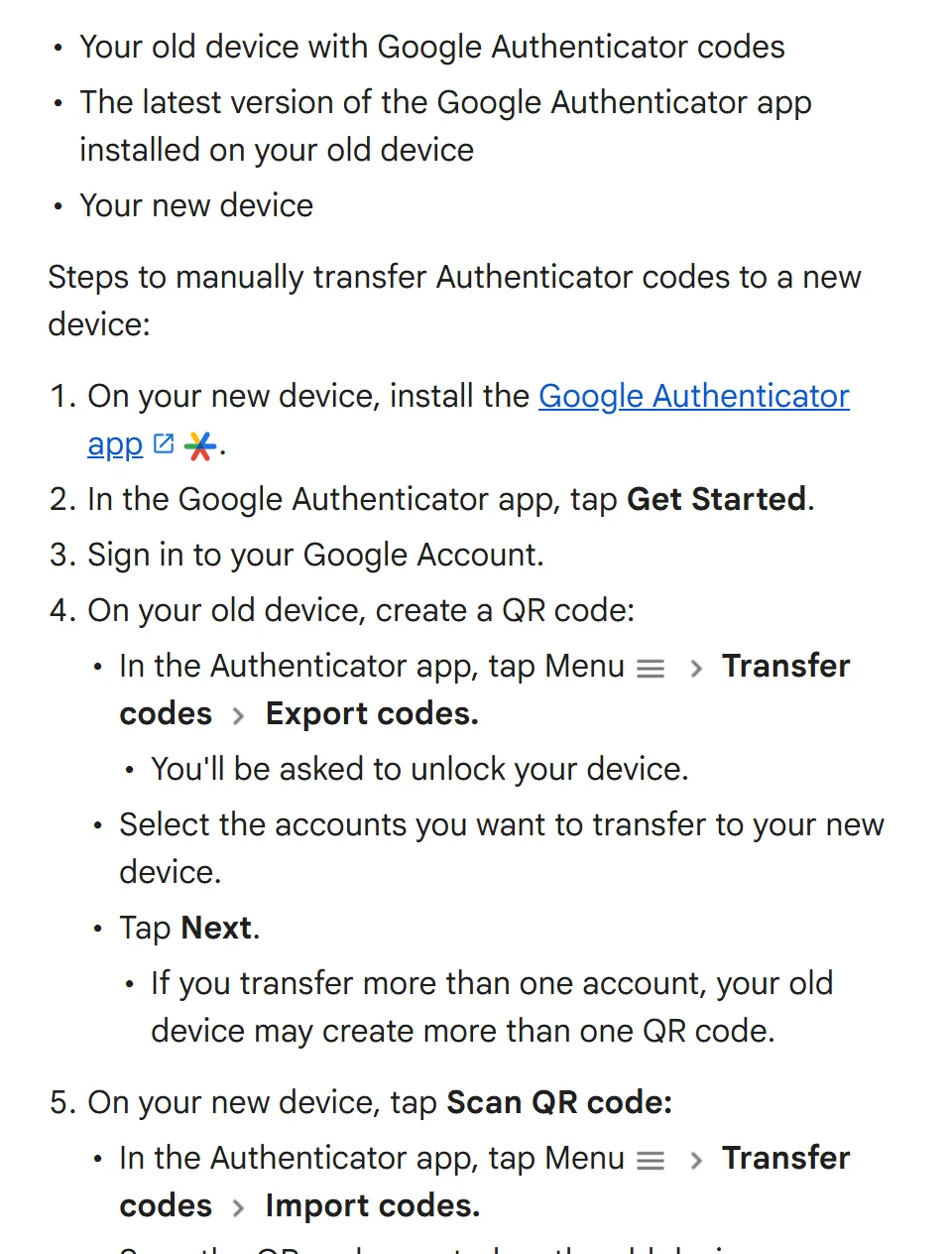
Old phone still works? Move the codes before you wipe it or hand it in. In Google Authenticator on the old phone, tap Menu > Transfer codes > Export codes, then scan the QR code it shows with Menu > Transfer codes > Import codes on the new phone. On an iPhone the labels say “accounts” where Android says “codes”. Full steps, and the test to run afterwards.
Old phone lost, stolen or broken? Install Google Authenticator on the new phone and sign in to your Google Account. Codes that were synced there come back by themselves. If yours don’t, the app has nothing to restore, and the way back in is a backup you saved at setup or each exchange’s own 2FA reset:
| Exchange | Where the reset starts | What it may ask for | Review time it states | Withdrawals afterwards |
|---|---|---|---|---|
| Binance | Website login, then [Security verification unavailable?] | Codes from your other 2FA methods; in some cases a video | Up to 24 hours if the request goes under review | Withdrawals, P2P selling, internal transfers and payment services off for up to 48 hours; the page describes no way to end this early |
| Bybit | Website login, then “Having problems with verification” and “Google Authenticator not working” | The Recovery Key Phrase from setup; without it, codes sent to your registered email and mobile number | Done once the codes are accepted, unless more checks are needed; 1–3 working days for a manual case | Withdrawals, internal transfers, card transactions and P2P restricted for 24 hours |
| OKX | If you can’t log in, only in its app: “Unable to verify?” | Verification through a method you still have | Not stated | Crypto withdrawals and P2P off for 24 hours |
| Kraken | Master Key at sign-in, Recover account at the 2FA prompt, or a support request: I can’t sign in to my account, then Issue with Two-Factor Authentication (2FA) | A Master Key or 2FA backup code set up before the loss; otherwise the details the request form asks for | Not stated; an agent follows up by email | Not stated for 2FA; up to 24 hours on new addresses after a password change |
| Bitget | Customer Support icon, then Self-service and “Account recovery” | ID front and back and a selfie holding it; live or video verification if you lost two or more methods | Most within 1 business day; 3–5 if video is needed | Withdrawals and other functions off for 24 hours |
| MEXC | “Reset Security Verification”, from Forgot Password or the Security page | Codes to the items you still have, or a face scan after Advanced KYC; then possibly a questionnaire, supporting proof, an ID photo and a video of you holding the ID, with your UID, email, phone number, the date and the reason written on paper | “As soon as possible” on the reset page; 1 business day on its unlink page | Withdrawals and fund transfers restricted for 24 hours after removing Google Authenticator |
Old phone still works: transfer the Google Authenticator codes, then test them
How you copy depends on whether Google Authenticator is signed in to a Google Account.
It’s signed in. Install the app on the new phone, tap Get Started and sign in to the same account. Google’s help page says your codes are then “automatically synced to this device”. Syncing needs version 6.0 or above on Android, 4.0 or above on iOS.
It isn’t, or you’re not sure. Export. You need the old phone with the codes, the latest version of the app on it, and the new phone.
- On the new phone, install Google Authenticator, tap Get Started and sign in to your Google Account, as Google’s steps do.
- On the old phone, tap Menu > Transfer codes > Export codes (Transfer accounts > Export accounts on an iPhone or iPad). The phone asks you to get past its screen lock.
- Select the accounts to move, every exchange entry included, and tap Next. With several accounts, the old phone may show more than one QR code.
- On the new phone, tap Menu > Transfer codes > Import codes (Transfer accounts > Import accounts on iOS) and scan each QR code.
- Wait for the confirmation that your codes have been transferred.
Then test, before the old phone goes anywhere. We’d sign in to each exchange with a code from the new phone while the old one can still step in. If a code is refused, Google’s checklist is short: entered before it expired, for the correct app or service and the correct account, and the phone’s time synced and correct for your local time zone. Since version 7.0 the app uses the phone’s own time setting.
When every entry works, we’d wipe the old phone as a whole rather than deleting codes one by one, because Google’s page says that if your codes sync, a code you delete is also deleted from all devices where your codes are synced.
Passkey-only setting switched on? Binance has an option that makes a passkey compulsory for logging in and withdrawing. Its page says to switch it off before changing to a different mobile device, logging in to a new iCloud account, changing passkey settings in the phone’s system settings or reinstalling its app. With it on, you can’t log in if you lose access to your passkeys, and the page sends you to the 2FA reset.
Another authenticator app? Check first whether your app can export to the new device. If it can’t, change the authenticator on the exchange while the old phone still makes codes. The three exchange pages that describe a change put the option under Security; in the OKX app the path reads Profile and settings > Security > Authenticator app > Change authenticator app. You pass a security check, then link the new phone by scanning a new QR code or entering the setup key. If the exchange asks for a second method first, such as a hardware security key or a cross-device passkey, add it before you delete the old sign-in 2FA. Two exchanges say a change made this way also starts their 24-hour withdrawal pause.
Moving Microsoft Authenticator to a new phone
Microsoft Authenticator moves codes with a cloud backup, and its help page says accounts backed up on an iOS device can’t be restored on an Android device. Third-party codes that refresh every 30 seconds, the kind an exchange entry makes, come back after a restore.
On Android, tap the three-dot icon in the app, then Settings, turn on Cloud Backup and choose the Microsoft personal account to store it in. On the new phone, select Restore from backup before you sign in to any account in the app, then sign in with the Microsoft personal account you backed up to. Microsoft’s page says that from January 2027 the Android backup is switched on from Google One backup instead of a Microsoft personal account.
On an iPhone, turn on iCloud Drive, iCloud Keychain and iCloud Backup, and switch on Authenticator in your Saved to iCloud list. On the new iPhone, turn on the same three iCloud settings, then install and open the app. If the codes don’t appear, Microsoft says the old phone needs version 6.8.33 or later, opened at least once before the switch, and the app on the new one uninstalled and reinstalled.
Between an iPhone and an Android phone the backup can’t help, so change the authenticator on each exchange first, or reset and link the new phone from scratch.
Old phone gone: start from what you still have
Deal with the lost phone first. Google’s page says to make sure nobody else can reach its codes, using the remote erase option for iOS or Android. Where that isn’t available, synced codes come off when you remove the device from your Google Account. For codes that aren’t synced, the page says you “need to visit every site that you have Google Authenticator set up on to remove the codes, and then relink your new device.” On an exchange, that visit is the 2FA reset. If your email was signed in on the lost phone too, change that email account’s password and 2FA as well.
The codes came back after you signed in. No reset needed; test them as you would after an export. If the app opens empty instead, rule out Google’s two causes before you start a reset: you may have been signed out of your Google Account (check the profile icon at the top right), or the codes were saved under another Google Account, so switch to it.
The sign-in prompt offers another method. Look on the code prompt for an option to switch to another verification method, and sign in with whatever else your account has: an SMS, voice or email code, a second sign-in 2FA method, or a Master Key. Once in, replace the authenticator as in the steps for linking a new phone; a change made this way can still start a 24-hour withdrawal pause.
You kept the backup from setup. Bybit shows a Recovery Key Phrase once, when you link the authenticator, as a QR code or a string of letters and numbers, and doesn’t store it. To use it, tap + in Google Authenticator, choose Manual entry and put the phrase under Key. A 2FA backup code recorded at setup, or a Kraken Master Key, gets you past the sign-in prompt instead, though a Master Key can’t be added once sign-in 2FA is already lost. Whichever you use, change your 2FA as soon as you’re back in, because a backup of a 2FA that sits on a lost phone isn’t secure.
Your email or phone number still gets codes. This is the self-service reset: tell the exchange which method is unavailable, then confirm with codes sent to what you still have. They can go to both the registered email and the mobile number, and they don’t last long: 15 minutes on one exchange’s reset page. If your account passed an advanced identity check, a face scan may stand in for the codes, and a reset can go on to a questionnaire about the account, supporting proof, an ID photo and a video of you holding the ID, with your UID, email, phone number, the date and the reason written on paper. The Binance 2FA reset, screen by screen, with what Application Denied and Under Review mean has each step. If a code never shows up, go through the email and SMS delivery checks in order before you start a new request.
The SIM went with the phone. If SMS was one of your methods, two are now gone. Tick every lost one in the same request. Choosing two or more can mean live or video verification, which on one exchange stretches the review from 1 business day to 3–5. If a face scan stalls along the way, the four places a liveness check stops apply here too.
Neither email nor phone works. Then the way back is a case handled by support. The exchanges that describe it take a manually submitted case or a support request, and support gets back to you by email; one exchange gives 1–3 working days for a manual case. Wait that out before you send a second case; Bybit asks you to re-submit only after three working days. OKX says an account you froze yourself can’t have its authentication methods reset, and points people who can’t sign in to the assistance on its login page.
Then there’s help you didn’t ask for. One exchange’s page says it will never ask for your password, 2FA codes or recovery phrase. A message or call offering to get you back in, when you didn’t ask, is one we’d leave unanswered until you’ve run five checks on “exchange support” calls and texts.
After a reset, link the authenticator to the new phone
Several resets end with the old authenticator switched off, unlinked or lifted from the account by a support agent, not replaced. Linking the new phone is then a separate step under Security, where the setup pages call it Authenticator App, Google Authenticator or Sign-in Two-Factor Authentication.
- Sign in with the methods you still have and open Security in your account settings, where the authenticator has its own entry. On Binance’s website that’s Profile > Account > Security, then Manage next to Authenticator App and Enable Authenticator App.
- Pass the security check. Depending on the exchange, that can mean confirming the change with a passkey, an authenticator code or your Master Key, or simply completing its two-factor verification.
- In the authenticator on the new phone, tap + and choose Scan a QR code. If the code won’t scan, choose Enter a setup key and type the key shown with it.
- Check that the new entry has appeared, and don’t click Next until the setup is complete.
- Enter the current 6-digit code from that entry. Codes refresh every 30 seconds; if one fails, try the next.
- Wait for the confirmation, which may come by email or SMS.
Two entries for the same exchange. An old entry that came back with a sync or a restore can sit beside the new one, still making codes for the authenticator the exchange removed. After you set up 2FA again, remove the old entry from the authenticator to avoid confusion. In Google Authenticator on Android, swipe right on it to delete it.
Several 2FA codes on one account. Kraken lets you set up a separate 2FA for sign-in, funding, trading and a Master Key. Once sign-in 2FA gets you back in, its transfer page says, the other three can be removed without the originals, unless the Global Settings Lock is on, and set up again from scratch. Label each entry so you know which is which; in Google Authenticator on Android, swiping left on a code lets you edit its username.
The screen shows a backup key or recovery phrase. Save it before you finish (what each kind can stand in for).
How long are withdrawals paused after a 2FA reset?
Most of the six exchanges stop withdrawals for 24 hours after the authenticator is reset, changed or removed; the longest pause is up to 48 hours. Both figures are as the help centres gave them in October 2026, and if a withdrawal hangs on either one, check the wording there today first.
What stops varies from exchange to exchange: besides crypto withdrawals, it can take in P2P trades, internal or fund transfers, card transactions and payment services. Where a page says how the pause ends, it lifts by itself when the period is over.
If you need to move funds on a given day, start the reset well before it.
If you also change your phone number or email after the loss, expect a pause for that too. Two of these exchanges list a 24-hour withdrawal restriction after either change, and neither says whether two changes made on the same day share one pause. Binance’s timed holds after a password or other security change are set out with the page each comes from.
Copying codes to a new phone appears in none of these hold rules. An export moves the same entry from one app to another and changes nothing in your exchange account, which is why we’d export while the old phone still works.
Will a passkey survive the change of phone?
Where you save a passkey decides whether it outlives the phone. A passkey in iCloud Keychain syncs across Apple devices on the same Apple ID, and one in Google Password Manager syncs with your Google account. Saved to a Chrome profile, a passkey stays on that one device.
A passkey is confirmed with a biometric check, your phone’s screen lock or a security key rather than a typed code. Kraken recommends passkeys for sign-in because they only work on its real site, leaving no code to enter on a fake site or share with a scammer, and allows up to five passkeys alongside one authenticator app.
The phone with the passkey is gone. Start the 2FA reset from the exchange’s login page. If a passkey pop-up appears, cancel it, choose the option saying your passkeys aren’t available, and carry on with the reset.
Removing a passkey can itself restrict withdrawals for 24 hours, so clear out old ones on a day you don’t need to withdraw.
Keep a backup so the next lost phone is a small problem
Google’s case for syncing is that saving codes in your Google Account “helps protect you from being locked out of your account when you change devices.” Its best practices add Privacy Screen (Menu > Settings > Privacy Screen), which asks for a PIN, pattern or biometric check (Face ID or Touch ID on an iPhone) before the app opens. If you use the app for your Google Account too, Google suggests enrolling in other forms of 2-Step Verification so you don’t lock yourself out.
Keep the setup backup off the phone. A setup key, a backup key or recovery phrase, and a Master Key can each stand in for the phone, so a copy kept on the phone is lost with it.
| Saved at setup | What it’s for | What the pages say |
|---|---|---|
| Setup key | Adds the exchange’s entry when the QR code won’t scan | Shown with the QR code; one FAQ says to type it in instead |
| Backup key or Recovery Key Phrase | Puts your codes on a new phone without a reset | One page calls saving it securely “essential for recovery” |
| 2FA backup code or Master Key | Gets you past sign-in 2FA without the phone | One exchange suggests keeping a Master Key on a different device from your sign-in 2FA |
Treat any of these like a password. One exchange’s transfer page shows that typing its phrase into an authenticator is enough to produce your codes.
Add a method that doesn’t live on this phone. A passkey saved to a password manager that syncs, or a hardware security key kept apart from the phone, isn’t lost with the handset.
Most of these resets confirm it’s you through a method you still have. Keep at least one that a lost phone can’t take with it, such as an email inbox you can also open on a computer.
Switching 2FA off, a dead phone, and codes on two phones
Can I switch 2FA off for the move and turn it back on afterwards?
Not everywhere, and it can cost a day. OKX says two-factor authentication can’t be turned off at all. Where you can, turning the authenticator off, changing it or removing it is among the actions that pause withdrawals for 24 hours on several of the exchanges we checked, the same as a reset. Copying the codes while the old phone still works changes nothing on the exchange.
My old phone won’t switch on, but I still have it. Does it count as lost?
For 2FA, yes. Bybit’s recovery page lists a phone that fails to turn on or has water damage next to a lost one as reasons you can’t reach your authenticator, and gives them the same two ways back.
Can the same codes sit on the old phone and the new one at once?
With Google Authenticator signed in to your Google Account, yes; Google’s page says the codes sync across all your devices. Synced codes are only as safe as that account, though: at least one exchange warns that codes synced to a Google, Apple or Microsoft account are exposed if the account is compromised, and recommends a passkey instead.
Help pages behind each step, read in October 2026
- Microsoft
- Back up one-time password codes in Microsoft Authenticator — backup and restore only on the same device type, Cloud Backup on Android and its move to Google One backup from January 2027, the iCloud settings on iPhone, what is backed up, and the fix when a backup doesn't appear; no date shown
- Restore one-time password codes in Microsoft Authenticator — Restore from backup on Android and the restore on iPhone; no date shown
- Bybit
- Help-centre pages on recovering and moving the authenticator, and on what restricts withdrawals — three pages: recovering the code after losing the phone or when it fails to turn on, with the Recovery Key Phrase, the reset with email and SMS codes and the manual case answered in 1–3 working days (last updated 23 August 2026); moving the codes to a new phone by export and import or by entering the phrase manually (25 November 2025); the withdrawal FAQ's nine actions that lead to a 24-hour restriction, disabling the authenticator and removing passkeys among them (12 April 2026)
- OKX
- Help-centre pages on changing the authenticator app, losing a 2FA method, and an app that isn't working — three pages: changing the app while logged in, the email or SMS confirmation, the app-only reset when you can't log in and the 24-hour pause (updated 1 October 2026); resetting a lost method with or without access, the self-frozen exception and 2FA that can't be turned off (25 August 2026); signing in with an SMS, voice or email code instead, and the pause after changing or unlinking the app (26 August 2026)
- Kraken
- Support pages on moving and recovering sign-in 2FA, how 2FA works, codes that fail, signing in, and requests for information — five pages: moving sign-in 2FA to a new phone, with the export check, the change made with the old phone, removing trading, funding and Master Key 2FA once back in, and the three options for a lost phone (last updated 13 June 2025); how sign-in 2FA works, with passkeys as the recommended method, up to five passkeys and one authenticator app, the Master Key on a separate device, the risk of synced codes and Recover account (30 September 2026); codes that don't work, with the four 2FA functions, labelling them and removing the old entry (31 March 2025); signing in with a Master Key, the support request for 2FA and the 24-hour hold on new addresses after a password change (13 April 2026); what it will never ask you for when it requests more information (1 October 2026)
- Bitget
- Support pages on recovering a lost account and on changing or setting up the authenticator — three pages: self-service recovery, live or video verification, review times and the 24-hour pause (published 3 April 2025); changing or unbinding the authenticator, the QR code or setup key, codes that refresh every 30 seconds and the automatic end of the 24-hour pause (23 January 2025); setting it up on mobile, Scan a QR code or Enter a setup key, saving the backup key and whether the authenticator can be disabled (23 January 2025)
- MEXC
- Help pages on resetting security verification and unlinking the authenticator — two pages: where the reset starts, 15-minute codes, the face scan after Advanced KYC, and the questionnaire, proof, ID photo and video that can follow (dated 25 September 2026); the one-business-day review and the 24-hour restriction after removal (29 July 2026)
- Binance
- Support pages on resetting 2FA, setting up the authenticator, and passkeys — five pages: resetting 2FA without access, with where the reset starts, the My Passkeys Are Not Available step, the 24-hour review and the pause of up to 48 hours (updated 18 March 2026); recording a video for a reset (no date shown); enabling the authenticator on the website, with the QR code and setup key and not clicking Next before the setup is complete (10 December 2025); creating a passkey, with where it can be saved and which choices sync or stay on one device (10 December 2025); the passkey-only setting and when to switch it off (published 27 February 2024)
- Get verification codes with Google Authenticator — Google Account Help, Android and iPhone versions: syncing, the export and import labels, editing and deleting codes, wrong codes, missing codes, a lost or stolen device, best practices; no date shown